







It's safe to say that when Recall and Click to Do officially launched, the new Copilot+ PCs truly stood out from the rest because what Recall and Click to Do delivered after about a day of use was fantastic. Microsoft
should have launched Recall and Click to Do a long time ago, and users buying Copilot+ PCs shouldn't have had to wait so long. However, now in the Insider builds, users have almost a complete experience, and I'll share my first impressions in this article. I'll talk about Recall in a later article because it needs more use to truly show its effectiveness. According to the latest information released by Microsoft, the Click to Do feature has been updated for any Copilot+ PC running an Insider build, on any channel. If you want to experience it with the fewest errors possible, you can choose the Beta channel.
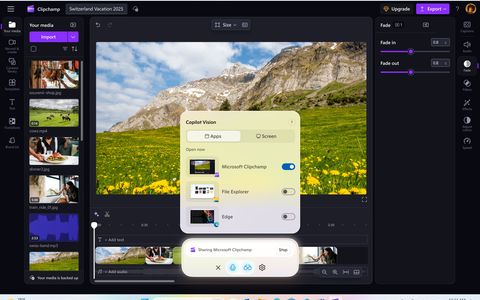
Here's a summary of the new features that will be updated for Copilot+ PC users this month.
What does "Click to Do" mean?
![[IMG]](https://photo2.tinhte.vn/data/attachment-files/2025/04/8704173_Screenshot_2025-04-13_092603_Medium.png)
Simply put, Click to Do is the computer version of "Circle to Search," allowing it to "read" screen content and interact with it depending on the context.
Compared to Circle to Search, which only offers search functionality, Click to Do provides users with more options, integrating Microsoft's Phi Silica Small Language Modeling (SLM) to summarize text, rewrite selected text, and OCR to automatically recognize text, emails, and phone numbers. Click to Do also integrates Copilot so you can ask Copilot questions (via the Ask Copilot feature).
In addition to text, Click to Do can work with images, including:
- Copy : Save to clipboard.
- Save as : Choose a location.
- Sharing : File sharing options.
- Open with : For example, Photos, Paint.
- To search for images : Use Bing via your default browser.
- Blur the background : Photos app.
- Delete objects : Photos.
- Remove background : Paint.
How Click to Do works
This feature operates entirely on the user's computer, meaning that even without an internet connection, you can perform some tasks, except for website searches, which require an internet connection. It only recognizes text and images; it doesn't process content or analyze application thumbnails.

When active, a multicolored cursor appears, changing shape depending on the type of content and performing different actions based on the detected content.
Files are temporarily stored at C:\Users\{username}\AppData\Local\Temp when switching to an application (e.g., Paint) or sending feedback; they are deleted after completion.

Because it can operate anywhere, anytime, not limited to a browser, it can work in applications such as File Explorer, Word, Excel, PowerPoint, Outlook… in short, it operates across the user's entire computer.
Advertisement
System requirements to use Click to Do
First, your computer must be a Copilot+ PC , meaning models with the Copilot+ PC logo on the machine, or it must have an NPU of 40 TOPs or more, at least 16GB of RAM, a chip with at least 8 cores, and a minimum of 256GB of SSD storage.
How to use Click to Do
You can press the Windows + Q shortcut to activate Click to Do, or use it in combination with the Snipping Tool via the Windows + Shift + S shortcut.
Features of Click to Do
For text

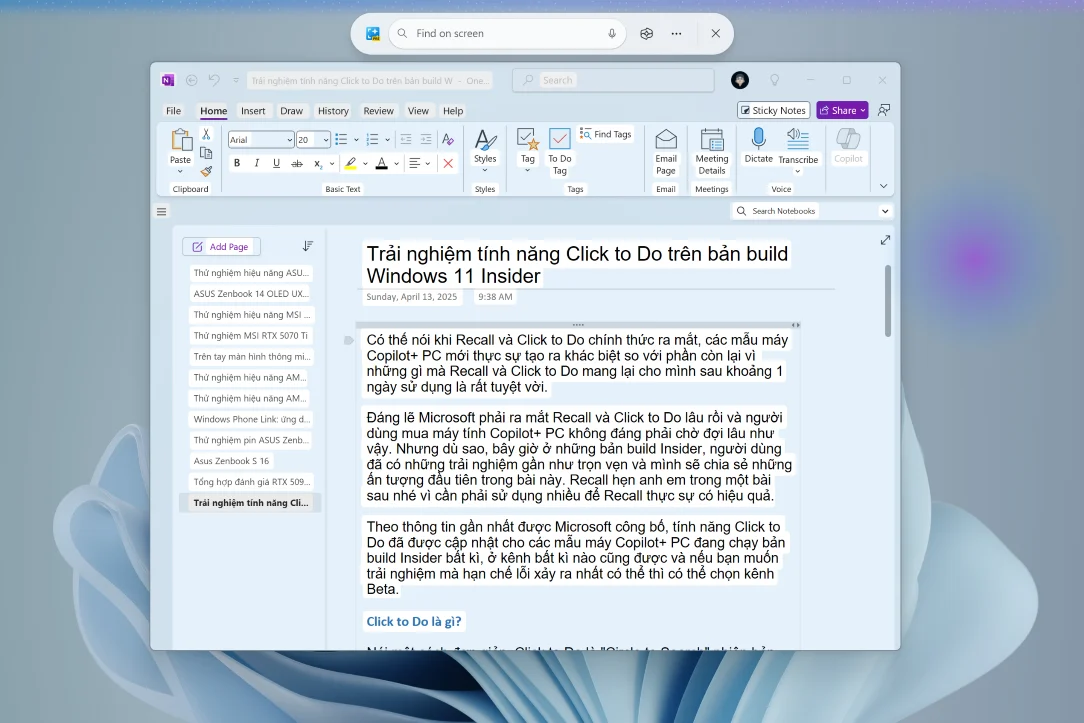
When you activate Click to Do, OCR will automatically select the text displayed on the screen. You can then select the desired text and right-click to perform the corresponding actions.

The most basic features are copying, opening in Notepad (or another application of your choice), and searching on the web. Furthermore, at the top of the screen there will be an input box where you can search, type text, or use voice commands.

More advanced features allow you to ask Copilot about the selected text, have the AI summarize it, or rewrite it for better understanding. Currently, I haven't been able to use this feature, and I'm not sure why, but I think preview versions often encounter errors during use.

However, you can see that when Click to Do (or Recall) works with text and images, the NPU is used, employing a Non-Silicon model to analyze and perform the tasks specified by the user.
Until Click to Do or Recall were released, the NPU on Copilot+ PCs couldn't really do much except for a very small number of applications and software that could utilize the NPU , or the Windows Studio Effects suite that came pre-installed on Windows 11. And that's with NPUs on Intel processors from Meteor Lake onwards; I'm using an AMD Ryzen AI 7 350 on my Zenbook 14 (with XDNA 2 NPU), so it's even rarer to find software that supports it.
For images

Basically, for images, Click to Do works the same as with text, but it adds an image search feature, using Bing for the search.
In this regard, I tried searching for at least two images on Tinh Te (a Vietnamese tech forum) and Bing didn't return any results, while Circle to Search returned very accurate results. Circle to Search also allows users to adjust the search range (expand or narrow), which Click to Do doesn't.
Of course, the website search feature for images requires an internet connection, and only then will your data (the image) be shared to the cloud to provide results. Regarding the results not displaying as expected, I suspect it's just a bug in the Preview version.

Try removing the background with Click to Do. (Using the Paint app)

Try blurring the background with Click to Do. (Using the Photos app)

Try removing objects with Click to Do. (Using the Photos app)
In conclusion
I believe that when Click to Do officially launches and its features are fully developed, it will open up extremely flexible and effective possibilities for users. For example, if a user needs to fine-tune a setting on their computer and isn't sure what effect it will have, they can open Click to Do and ask Copilot, or get a summary of Microsoft's explanation of that setting directly on the screen without having to search elsewhere.
I'll come back and share more about Click to Do with you guys once it's working well and officially launched to all users.